Quick answer: Open Settings from the sidebar (Workspace → Settings) or the user menu. Use the Profile tab to update your name, email, avatar, and password. Other Settings pages cover Support, AI usage & credits, Desktop & mobile, API, and MCP servers. Integrations are under Integrations, and billing is under Subscription.
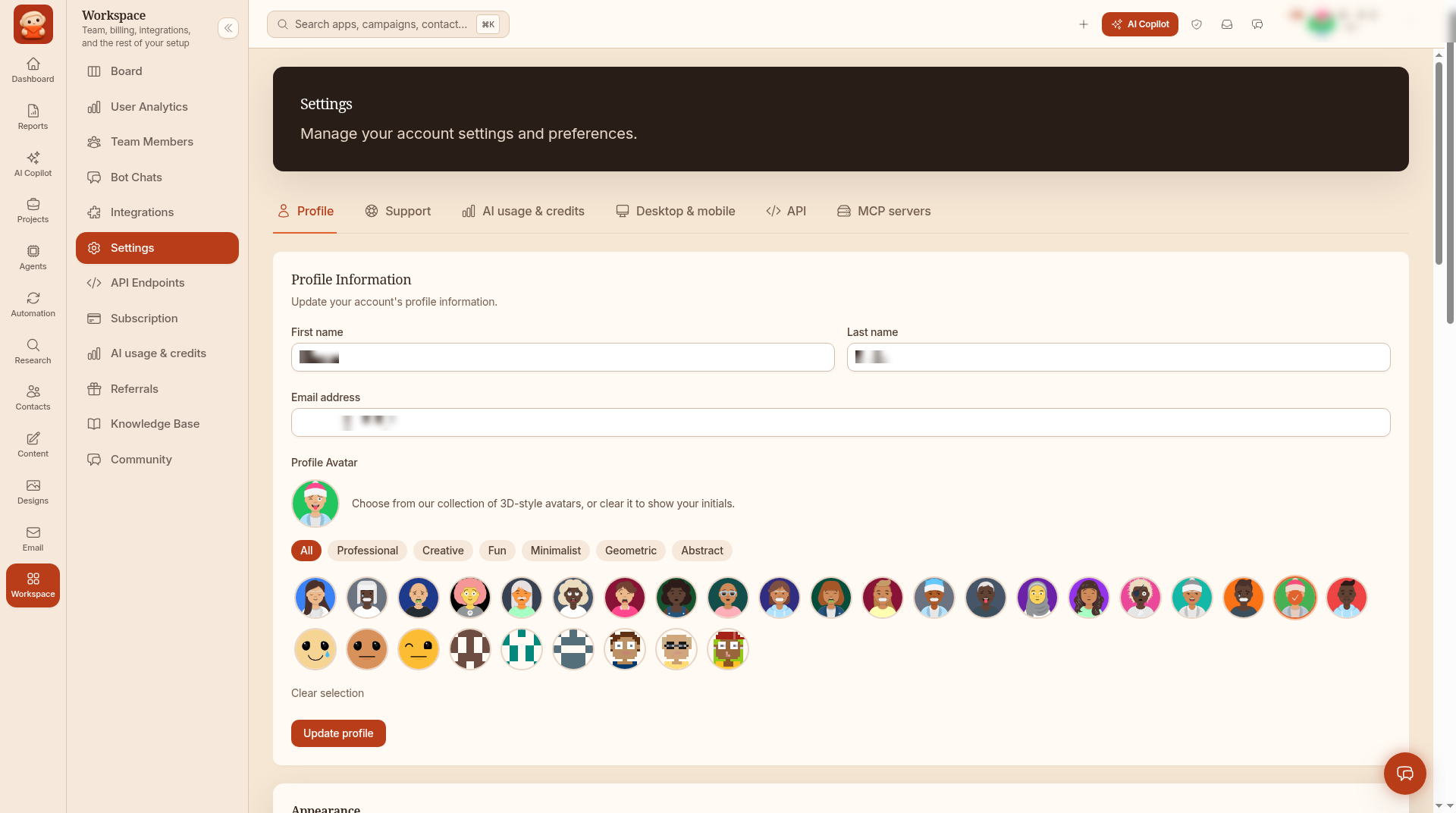
Your settings control how OutreachBox behaves for you and your whole organization. This guide covers each section and what to set before you start sending campaigns.
Before you start
Confirm you are editing the correct organization and have permission to change its settings. Record the current values before replacing shared details.
Practical example
An agency can use its organization name for team administration while keeping each client website in a separate project. Check a saved setting after reopening the page to confirm the change persisted.
Check your result
If a setting reverts, review validation errors and your role. A connected email account or campaign can have its own configuration; check that screen when an organization setting does not affect a send.
How to access settings
Click Settings in the sidebar (Workspace → Settings), or open Settings from the user menu under your avatar.
Profile settings
Set your personal information on the Profile tab:
- Update First name, Last name, and Email.
- Choose a Profile Avatar.
- Use Update Password on the same tab when you need to change your password.
- Save changes.
Other Settings pages
From the Settings section nav you can also open:
- Support — contact support and review your tickets.
- AI usage & credits (
/settings/ai-usage) — credit usage for AI features. - Desktop & mobile (
/settings/desktop-team) — OutreachBox Desktop and mobile access (shown to organization admins). - API (
/settings/api) — create and revoke API keys for programmatic access. - MCP servers (
/settings/mcp-servers) — MCP server configuration (shown to organization admins).
Team members and roles are managed under Team Members, not Settings. See How to Manage Team Members, Roles, and Permissions. Billing is under Subscription. See How to Manage Your Subscription and Billing. In-app alerts are in the header bell and on the Notifications page. See How to Manage Notifications.
Best practices
- Keep your profile name and email current so teammates and notifications reach the right person.
- Rotate API keys periodically on the API page and revoke any you no longer use.
- Check campaign or schedule settings for the timezone that applies to a send; OutreachBox does not have a timezone or theme control on the Settings page.
Frequently Asked Questions
Why aren't my settings saving?
Check that all required fields are filled, that you have permission to edit organization settings, then refresh the page or clear your cache and try again.
Where do I manage integrations?
Connected services live under Integrations. See How to Connect Integrations.
How do I change my timezone?
Check the timezone shown in the relevant campaign or schedule configuration. Do not assume a browser timezone or profile setting changes every scheduled job.
Related articles
- How to Reset Your Password and Keep Your Account Secure
- How to Manage Team Members, Roles, and Permissions
- How to Connect Integrations
Configure settings once so your campaigns, reports, and team all behave the way you expect.