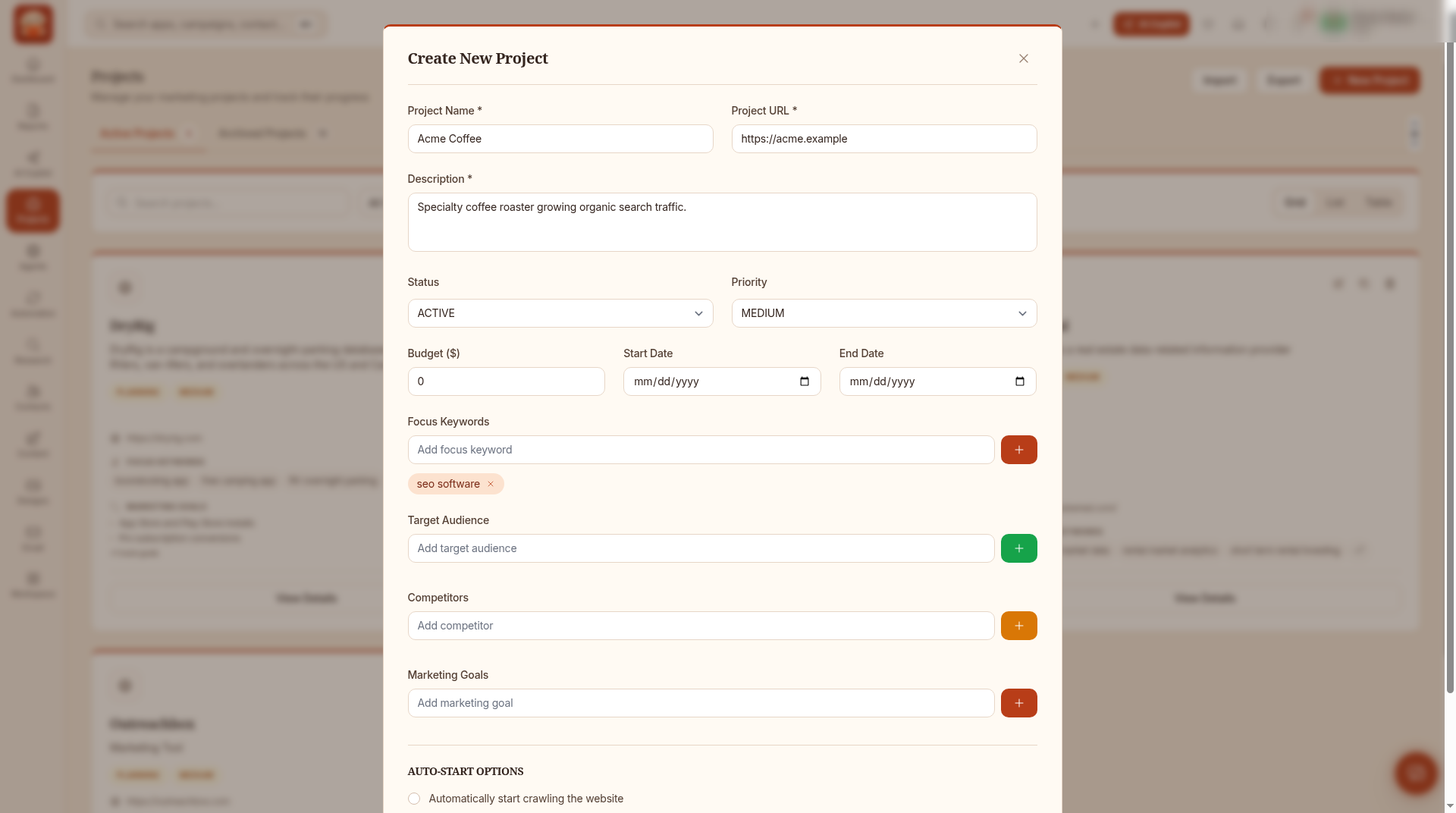
Quick answer: Go to Projects, click New Project, and fill in the Create New Project modal — Project Name, Project URL, and Description are required. You can also set status, priority, budget, dates, focus keywords, target audience, competitors, and marketing goals. Optionally enable Automatically start crawling the website and Automatically detect competitors via SERP, then click Create Project. The project becomes the hub for keywords, competitors, crawled data, tasks, and analytics.
Projects are how OutreachBox organizes your marketing and SEO work. Each project represents one website or initiative and brings its keywords, competitors, crawl data, content, and analytics together in one place.
Before you start
Choose the primary website URL and a small set of relevant topics. Use one project per distinct website or brand when their audiences differ.
Practical example
For a local accounting site, set focus terms around the services and locations actually covered. Keep unrelated client websites in separate projects so generated suggestions use the correct context.
Check your result
If suggestions mention the wrong business, review the project URL, description, and keywords. Saving a project organizes your work; it does not publish changes to your website.
How to create a project
- Navigate to Projects from the main menu.
- Click New Project.
- In the Create New Project modal, fill in the details:
- Project Name — e.g., "Company Website" (required).
- Project URL — the website you want to analyze and rank (required).
- Description — a short summary of the initiative (required).
- Status — Planning, Active, On Hold, Completed, or Cancelled.
- Priority — Low, Medium, High, or Urgent.
- Budget ($), Start Date, and End Date — optional planning fields.
- Focus Keywords — the terms you want to rank for.
- Target Audience, Competitors, and Marketing Goals — optional context for research and content tools.
- Under Auto-Start Options, enable Automatically start crawling the website and/or Automatically detect competitors via SERP if you want those jobs to start on create.
- Click Create Project.
What's inside a project
Open any project to find tabs for everything you need:
| Tab | What it's for |
|---|---|
| Overview | Summary, key metrics, recent activity, timeline |
| Brief | The project brief |
| Goals | Project goals and experiments |
| Keywords | Your focus keywords and their performance |
| LLM Keywords | AI-generated keyword and content suggestions |
| Competitors | Competing sites and competitive analysis |
| Analytics | Traffic, engagement, and conversion data |
| Tasks | Project to-dos with assignments and due dates |
| Notes | Meeting notes and shared information |
| Memory | Project memory for agents and desktop bots |
| Skills & rules | Skills and rules that guide bot behavior |
| Engagement | Engagement tracking |
| Bot dashboard | Desktop bot activity for the project |
| Bot policies | Policies for bot actions |
| Background AI | Background AI jobs |
| Listings & tracking | Listings and tracking |
| Crawled Data | Page content, structure, and SEO data |
How to manage projects
- Switch views — toggle between Grid, List, and Table views.
- Edit — update details from the project detail page.
- Duplicate — copy a project (adds "(Copy)" to the name).
- Archive — deleting a project archives it; restore it later from Archived Projects.
- Search and filter — find projects by name, URL, status, or priority.
- Import/Export — export projects to CSV; import from a JSON file matching the project structure.
Best practices
- Use descriptive names so projects are easy to identify.
- Add focus keywords at creation so the crawler and content tools have context.
- Set status and priority honestly so your project list reflects real work.
- Archive completed projects to keep your workspace clean.
Frequently Asked Questions
Why won't my project create?
Confirm all required fields are filled, the URL is valid, you have permission to create projects, and you haven't hit your plan's project limit.
What does "Automatically start crawling the website" do?
It automatically starts crawling your site when the project is created, so the Crawled Data tab populates without a manual step. See How to Run a Website SEO Audit With the Crawler.
Can I restore a project I deleted?
Yes. Deleting archives the project. Open the Archived Projects tab and Restore it.
Related articles
- How to Do SEO With OutreachBox
- How to Do Keyword Research With OutreachBox
- How to Run a Website SEO Audit With the Crawler
A well-set-up project is the foundation for repeatable, measurable SEO.